If you are searching for “how to setup Forex EA on MT4” or “how to install Forex robot in MT4”, this professional guide will walk you through the correct process from start to finish.
MetaTrader 4 (MT4) is one of the most popular trading platforms for running automated trading systems known as Expert Advisors (EAs).
Whether you downloaded a robot from our website or purchased a premium EA, follow this complete setup process carefully.
What Is a Forex EA in MT4?
A Forex EA (Expert Advisor) is an automated trading robot that:
-
Opens trades automatically
-
Closes trades automatically
-
Manages stop loss & take profit
-
Executes a pre-coded trading strategy
If you are new to Forex robots, we recommend reading:
👉 Complete Guide to Setting Up Forex EA MT4 & MT5
https://forexcrackedvip.com/complete-guide-for-set-forex-ea-mt4-and-mt5/
Step 1: Install MetaTrader 4
Before installing your EA:
-
Download MT4 from your broker
-
Install the platform
-
Log in to your trading account (Demo first recommended)
💡 Important: Always test new EAs on a demo account before going live.
If you are planning to trade gold, check:
👉 Gold Trading Robots Collection
https://forexcrackedvip.com/product-category/gold-ea/
Step 2: Install Forex EA in MT4
Follow these exact steps:
-
Open MT4
-
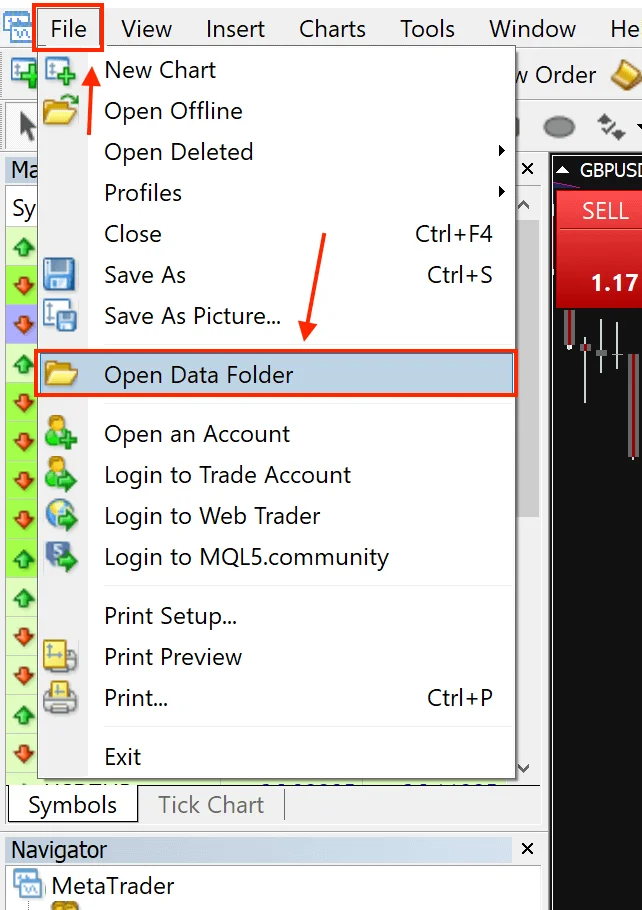
Click File → Open Data Folder
-
Open MQL4 folder
-
Open Experts folder
-
Paste your EA file (.ex4 or .mq4)
-
Restart MT4
After restart:
-
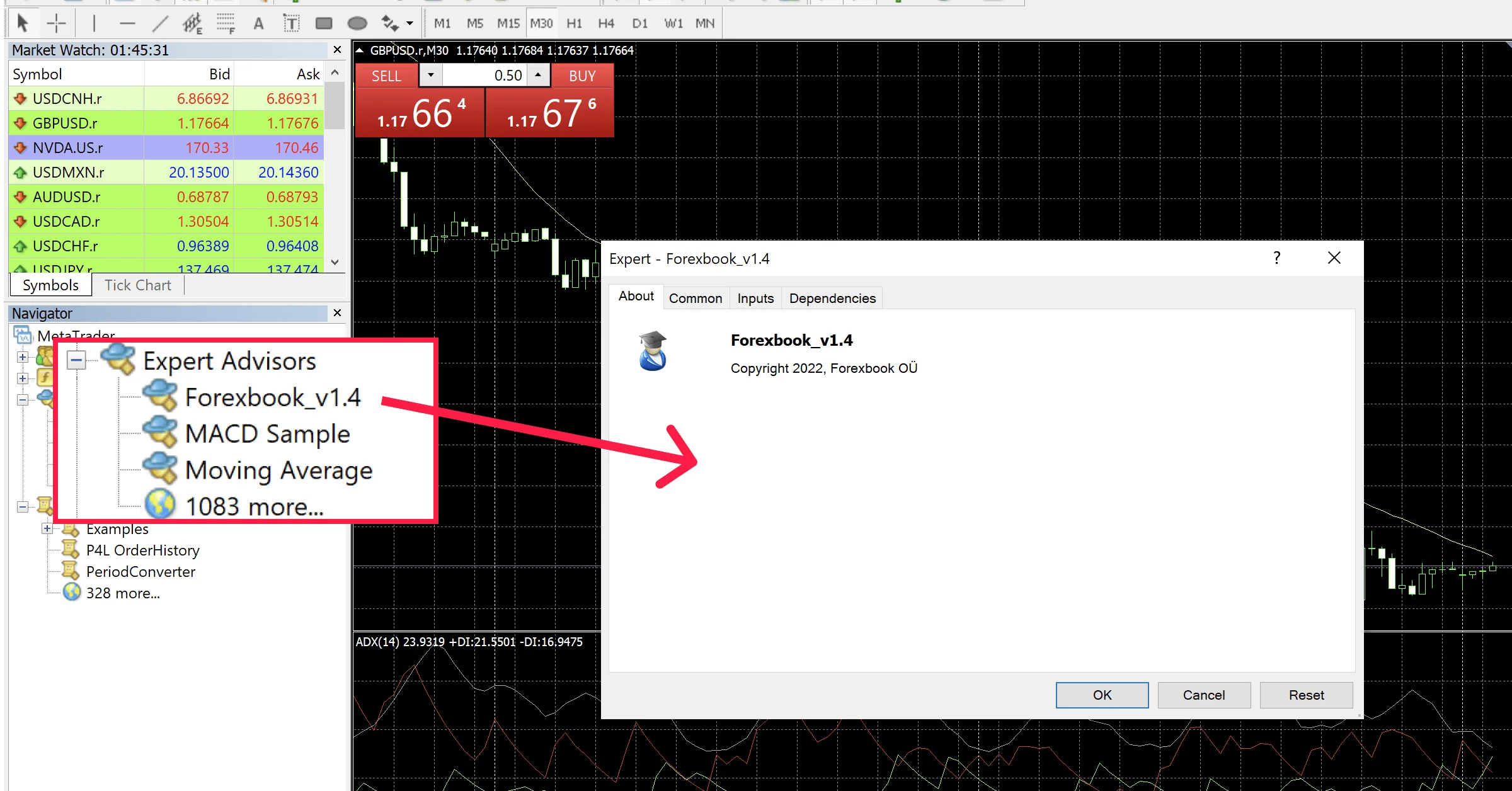
Go to Navigator
-
Expand Expert Advisors
-
You will see your installed EA
Step 3: Attach EA to Chart
-
Open correct currency pair (EURUSD, XAUUSD, GBPUSD etc.)
-
Choose correct timeframe (M1, M5, H1 etc.)
-
Drag EA onto the chart
Step 4: Enable AutoTrading in MT4
To activate your robot:
-
Click AutoTrading (must be GREEN)
-
In settings → Common tab:
✔ Allow live trading
✔ Allow DLL imports (if required)
If you see a smiley face in the top-right corner of the chart, your EA is running correctly.
Step 5: Load Set File (Optimized Settings)
Most premium EAs include a .set file.
Why use it?
-
Optimized risk settings
-
Tested configuration
-
Better drawdown control
-
Ready-to-use performance
You can find optimized EAs here:
👉 Recommended Forex EAs
https://forexcrackedvip.com/product-category/forex-ea/
Step 6: Use VPS for 24/7 Trading
If your PC is OFF, your EA stops trading.
Professional traders use VPS for:
-
24/7 uptime
-
Fast execution
-
No disconnection
-
Stable performance
👉 Recommended VPS
https://forexcrackedvip.com/recommended-category/recommended-vps/
Common MT4 EA Problems & Fixes
EA not taking trades?
✔ Enable AutoTrading
✔ Check Journal tab
✔ Verify lot size
EA not showing?
✔ Restart MT4
✔ Confirm correct folder (MQL4 → Experts)

-
 Sale!Original price was: $599.00.$0.00Current price is: $0.00.
 -
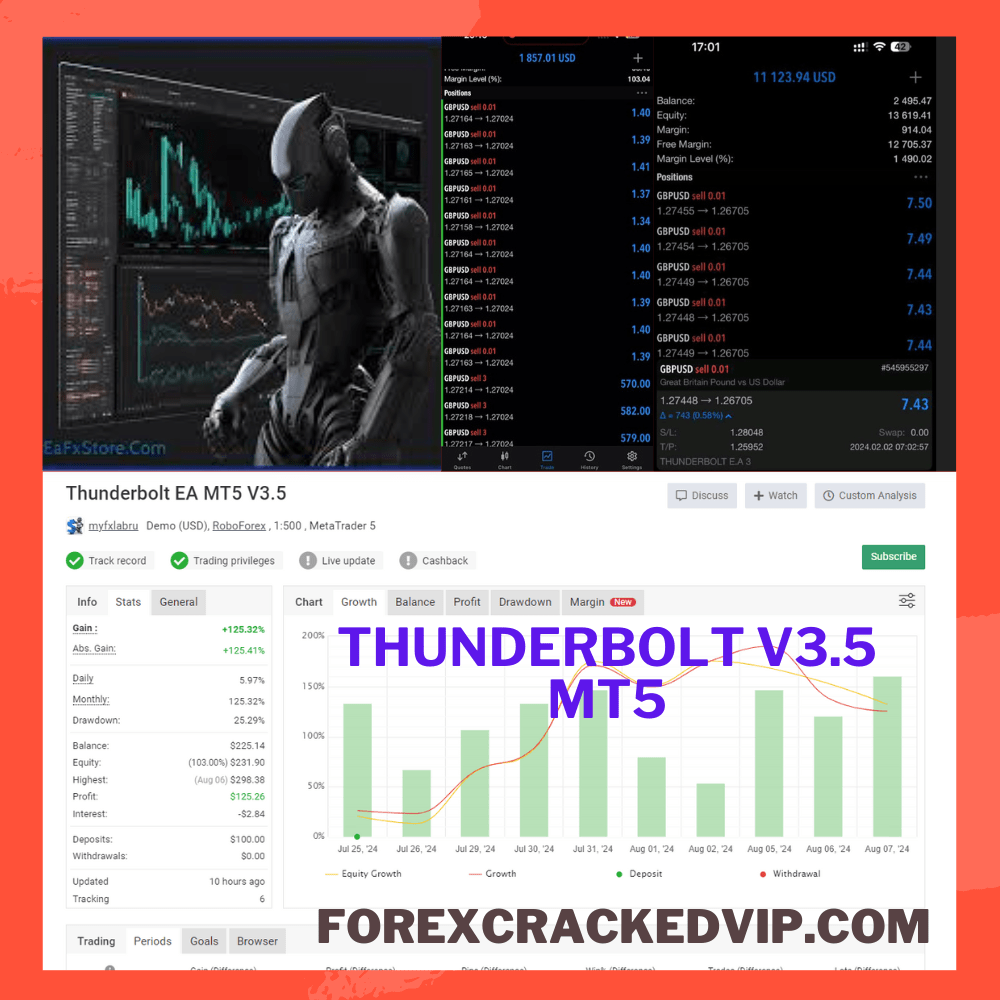 Sale!Original price was: $999.00.$24.99Current price is: $24.99.
 -
 Sale!Original price was: $999.00.$17.99Current price is: $17.99.
 -
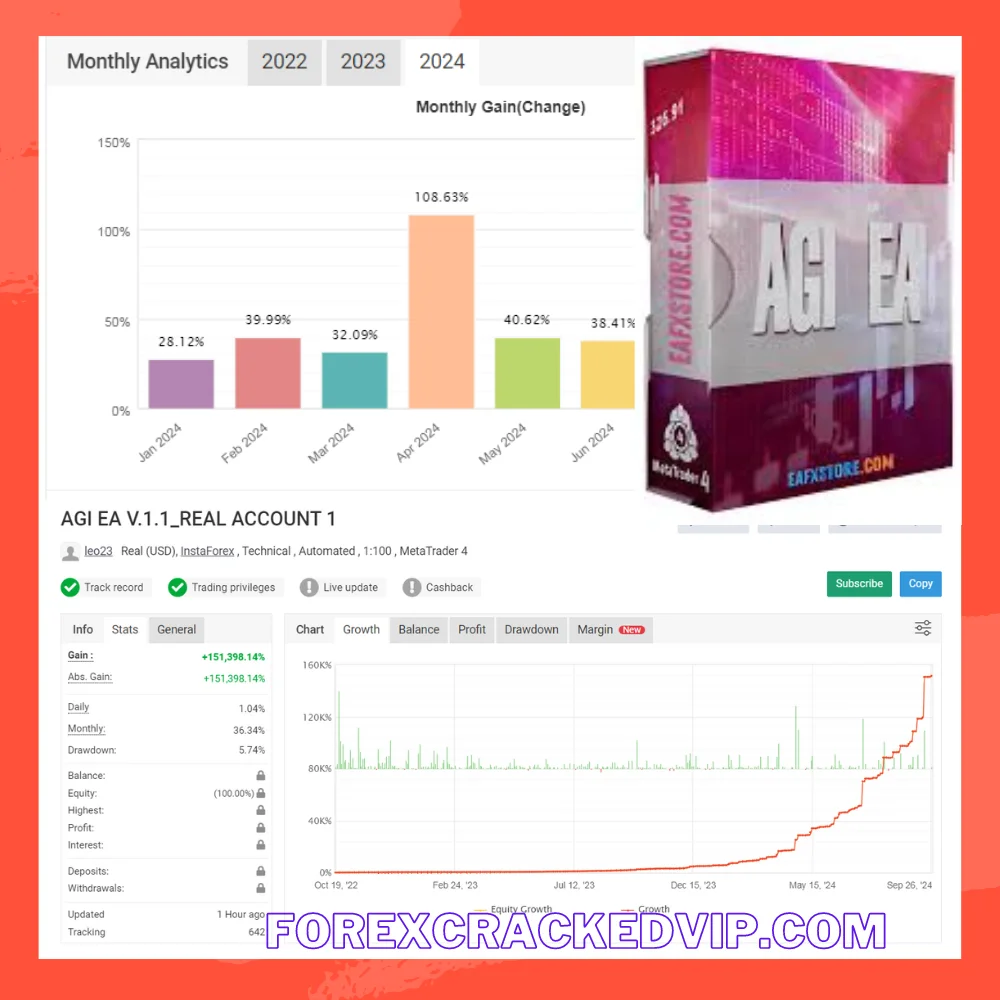 Sale!Original price was: $1,599.00.$39.99Current price is: $39.99.
 -
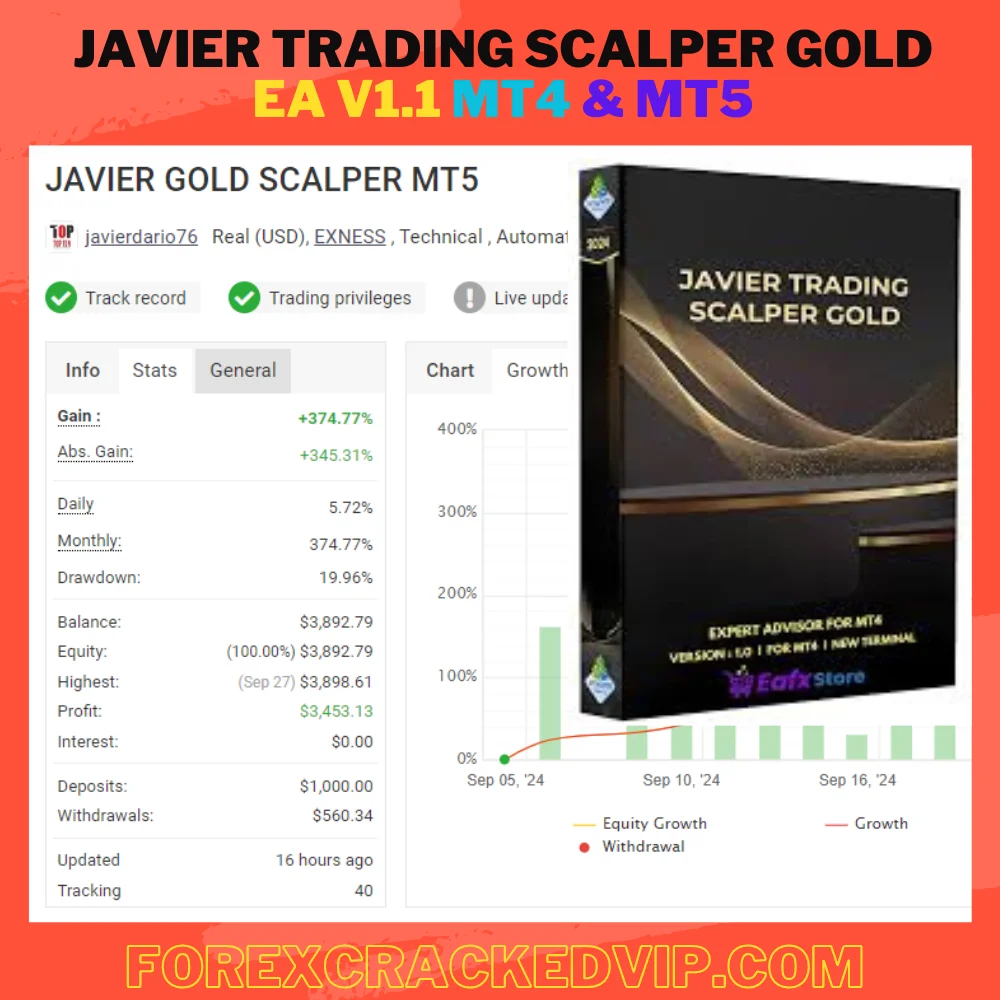 Sale!Original price was: $999.00.$55.00Current price is: $55.00.
 -
 Sale!Original price was: $1,399.00.$24.99Current price is: $24.99.
 -
 Sale!Original price was: $1,299.00.$55.00Current price is: $55.00.